Hello there! Today I’m going to share my journey with an Asus Zenbook 14 OLED Windows 11 upgrade – and oh boy, it turned into quite an adventure.
I’ve had my Zenbook (Q409ZA) for over three years now. One thing had been bothering me for a while: no sound from the built-in speakers. Sure, I could get by with Bluetooth headphones, but deep down I knew… one day I’d have to do a full reset and give my laptop a fresh, clean start.
So my mission was clear:
- Reset Windows,
- Upgrade to Windows 11,
- And bring my Zenbook back to life like the day I unboxed it.
But of course… things didn’t exactly go according to plan.
First Attempt: The Reset That Failed
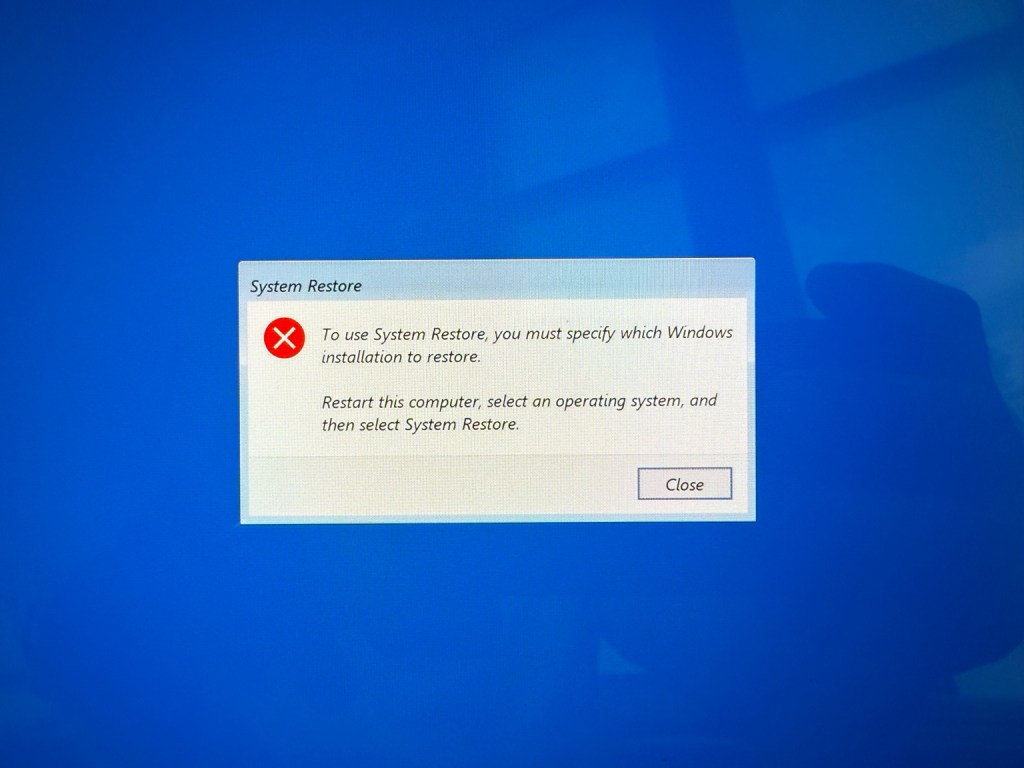
Like many people would, I started with the easiest option: Windows Reset.
Guess what? It failed. Every. Single. Time.
Then I thought, “Okay, let’s try Cloud Reset.” Hours of downloading later, I restarted the laptop, excited to see a clean desktop… only to land on the dreaded Advanced Options screen.
At that point, I knew this wasn’t going to be a quick fix.
Plan B: A Clean Install via USB
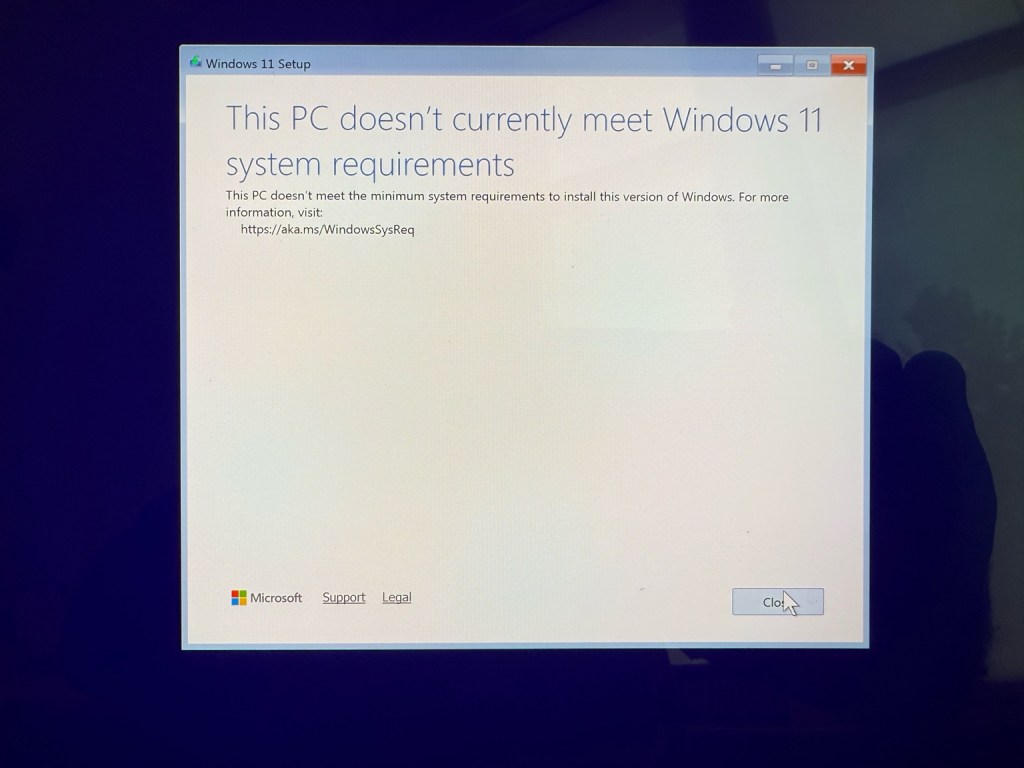
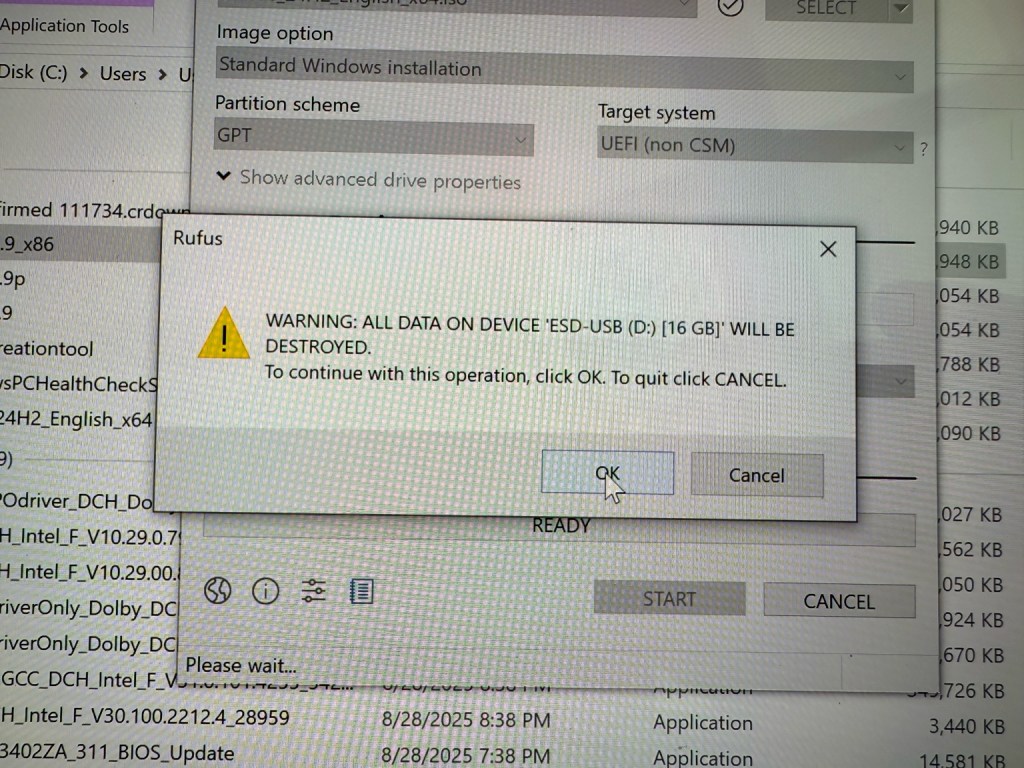
Alright then, time for the heavy artillery. I grabbed Microsoft’s Media Creation Tool and made myself a Windows 11 installation USB.
Booted up, ready to go… and bam:
The SSD was missing.
Seriously, the installer didn’t even see my main drive. I ran list disk in DiskPart, and all I could see was the USB stick. My SSD was nowhere to be found.
That was the moment I realized: “Okay, this is going to be interesting.”
The Breakthrough: Intel VMD Driver
After a bit of digging, I discovered the culprit: Intel VMD (Volume Management Device).
On Zenbooks, it’s enabled by default, which means Windows setup can’t recognize the SSD unless you feed it the right driver.
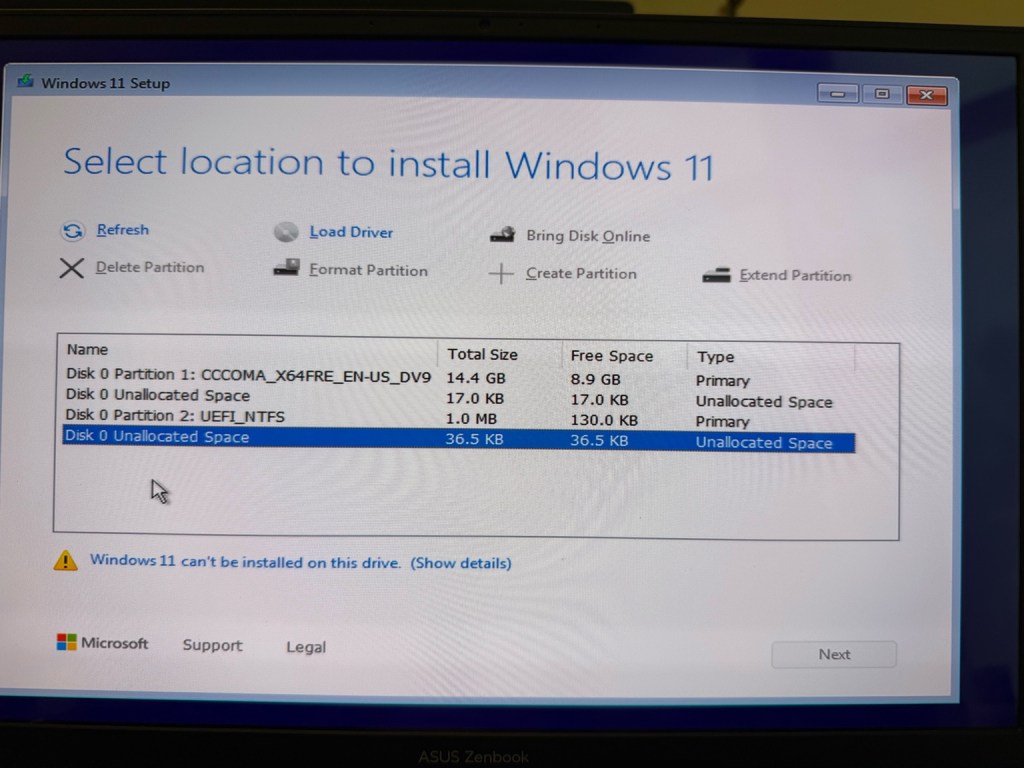
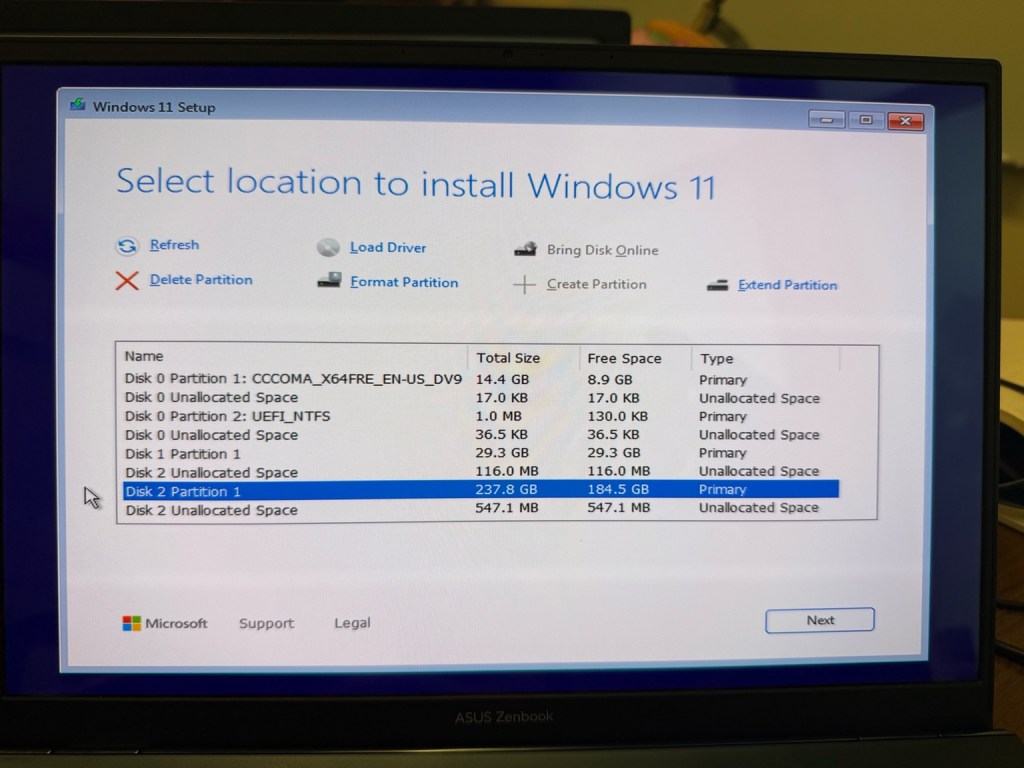
So I went to Asus support, downloaded the Intel RST / VMD driver, hit “Load Driver” during installation, and like magic – the SSD appeared.
That was the turning point. Finally, I felt like I was winning.
Wiping the SSD and Installing
I deleted all the partitions, left just one big Unallocated Space, and hit Next.
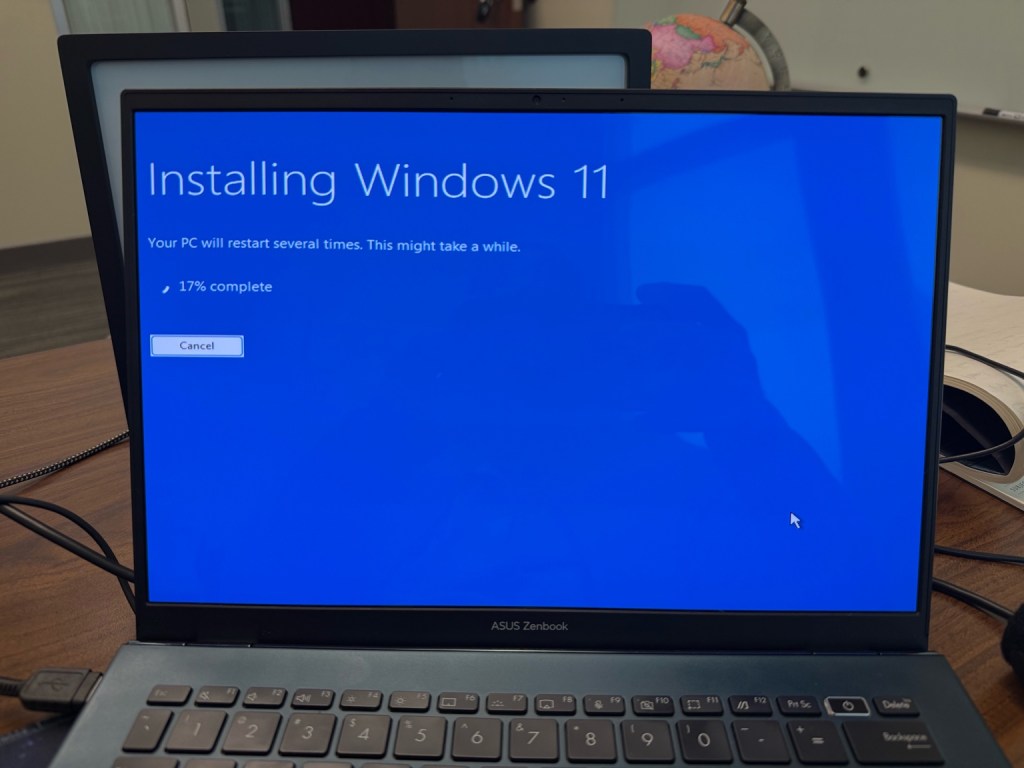
The installation started rolling: 17%, 50%, 100%… and after a few restarts, my Zenbook greeted me with a clean screen of…
No product key needed, because the license was already embedded in the hardware. It just worked.
Drivers, Fixes, and… One Last Issue
Next up, I went on a driver-installing spree: chipset, graphics, Wi-Fi, touchpad, hotkeys – the whole package.
Everything was running smooth… except one thing.
The built-in speakers still refused to work.
Bluetooth audio? Perfect.
USB sound card? Works like a charm.
Internal speakers? Dead silent.
At that point, I had to admit: this was no longer a software problem – most likely the codec chip or speaker circuit was fried.
And honestly? I was okay with that.
So what did I learn from all this?
- Don’t panic when things go wrong.
- On modern laptops like the Zenbook, a missing driver can completely block your progress.
- But once you figure out the right fix, the road becomes clear.
In the end, I got what I wanted: a fresh Windows 11 install and a smooth, clean system.
Sure, the built-in speakers aren’t working – but with Bluetooth and USB audio, my Zenbook is alive and well again.
And that’s the story of how a simple reset turned into a full-on troubleshooting adventure.
After hours of errors, drivers, and endless installation screens, my laptop finally felt reborn.
But this wasn’t just about fixing a machine.
Life often works the same way. We struggle with setbacks, try countless times, and when things still don’t work, we search for another way. And then one day, we find the right fix – and everything clicks into place.
Now my Zenbook runs fresh on Windows 11. The built-in speakers may still be silent, but my Bluetooth headphones are here to keep me company. Just like life itself: not everything has to be flawless. Sometimes it’s the little imperfections that give us the strength to move forward.
 Howdy!
Leave a comment